 SurfSense Docs
Slack
Let the SurfSense agent search and read your Slack workspace
The Slack connector connects SurfSense to Slack's hosted MCP server, giving the agent live tools to search channels and read threads on your behalf. Nothing is indexed in the background — the agent queries Slack in real time when you ask.
This setup is only needed on self-hosted deployments. On SurfSense Cloud, just click Connect.
Step 1: Create a New Slack App
- Navigate to api.slack.com/apps
- Click "Create New App"
- Select "From scratch"
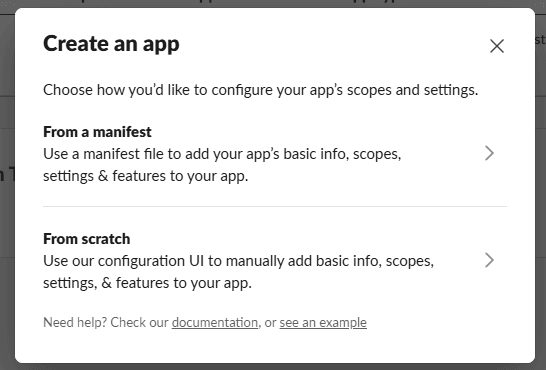
Step 2: Name App & Choose Workspace
- Enter App Name:
SurfSense - Select the workspace to develop your app in
- Click "Create App"
You won't be able to change the workspace later. The workspace will control the app even if you leave it.
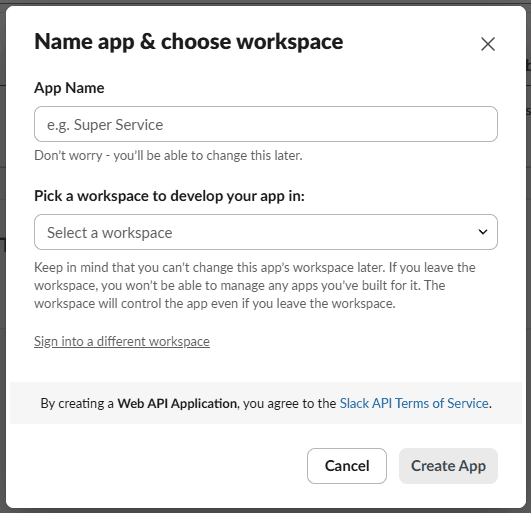
Step 3: Get App Credentials
On the Basic Information page:
- Copy your Client ID
- Copy your Client Secret (click Show to reveal)
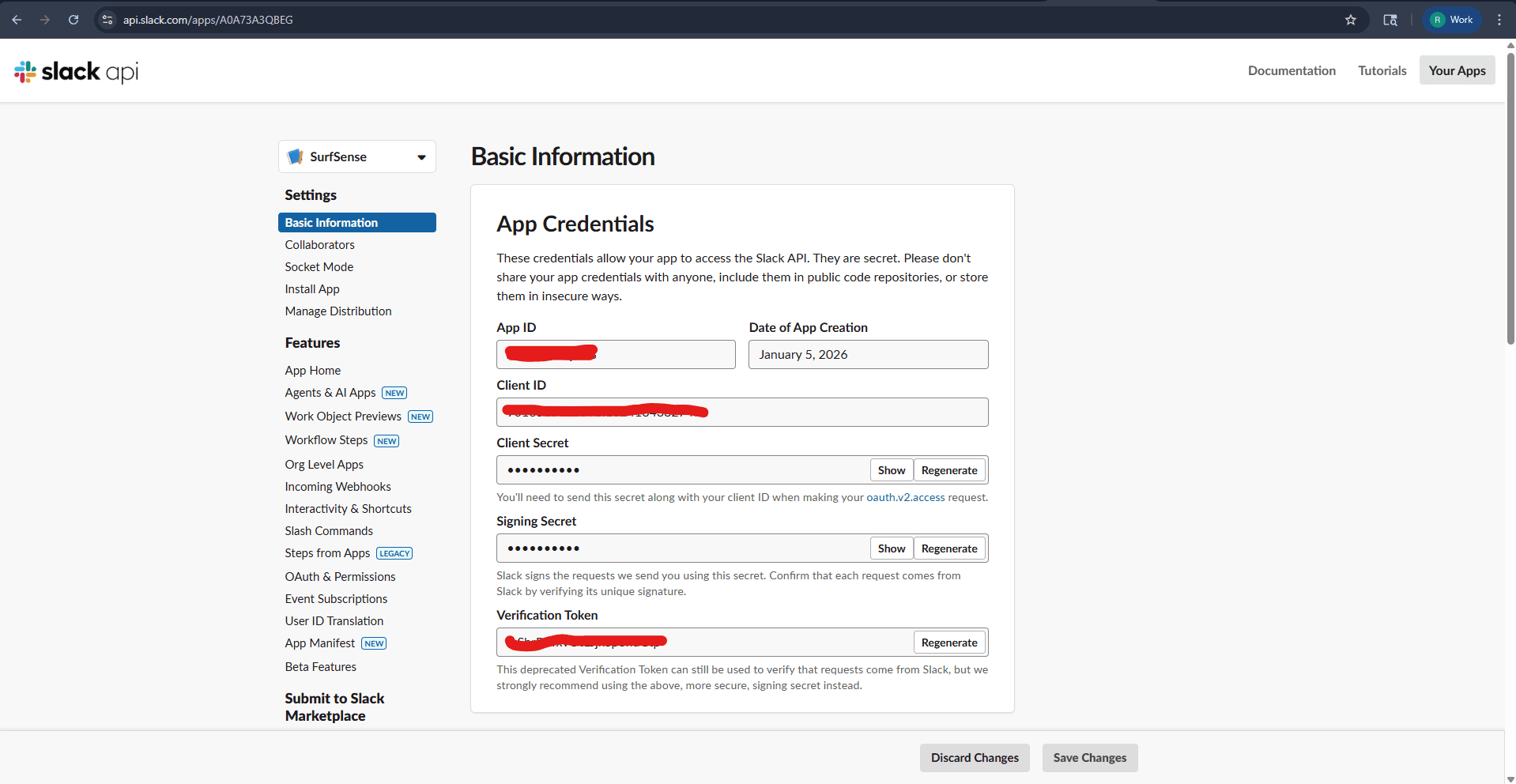
Step 4: Configure the Redirect URL
- In the left sidebar, click "OAuth & Permissions"
- Under Redirect URLs, click "Add New Redirect URL"
- Enter your SurfSense callback URL:
http://localhost:3929/api/v1/auth/mcp/slack/connector/callbackhttp://localhost:3929 is the default public URL of a Docker install. If you run SurfSense manually, use your backend URL (http://localhost:8000); in production, use your public domain. Note that Slack requires HTTPS redirect URLs for production apps.
- Click "Add", then "Save URLs"
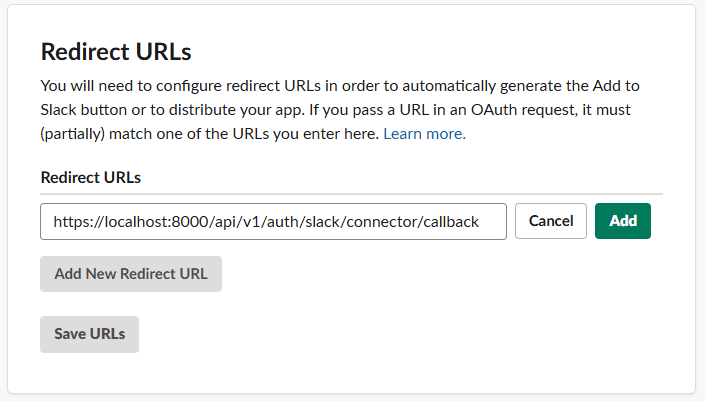
Step 5: Configure User Token Scopes
On the same OAuth & Permissions page, scroll to Scopes. The connector acts on behalf of the connecting user, so add these under User Token Scopes:
| OAuth Scope | Description |
|---|---|
search:read.public | Search public channels |
search:read.private | Search private channels the user is in |
search:read.mpim | Search group direct messages |
search:read.im | Search direct messages |
channels:history | Read messages in public channels |
groups:history | Read messages in private channels |
mpim:history | Read group direct messages |
im:history | Read direct messages |
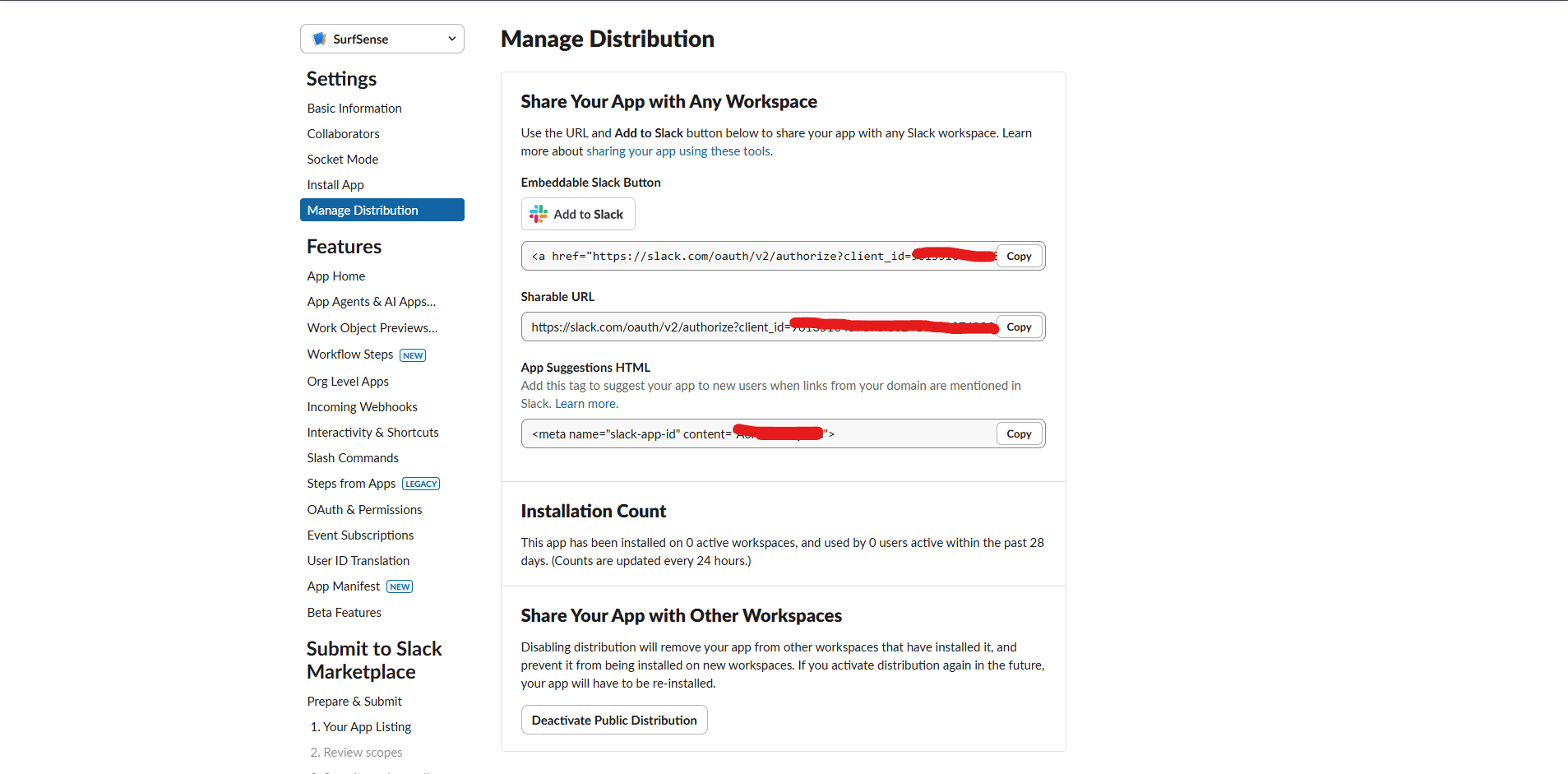
Step 6: Enable Public Distribution
- In the left sidebar, click "Manage Distribution"
- Under Share Your App with Other Workspaces, enable distribution so users can authorize the app in their own workspaces
Step 7: Add the Credentials to SurfSense
Add the Client ID and Client Secret to your .env file:
SLACK_CLIENT_ID=your_slack_client_id
SLACK_CLIENT_SECRET=your_slack_client_secret
Restart SurfSense, open the Connectors dialog, and click Connect on Slack:
docker compose up -dNever share your app credentials publicly.