
Activate your license
Your license is a file, not an account. SurfSense checks it on your own machine, so it works offline and on every computer you install the app on. Only the paid plugins send its key, to our plugin service, which checks it.
Five steps to an active license
- 1
Install SurfSense
Skip this if you already have the app. One installer for Windows, macOS or Linux.
- 2
Save the license file
It arrived as an email attachment named
surfsense.lic. Save it somewhere you can find it again. - 3
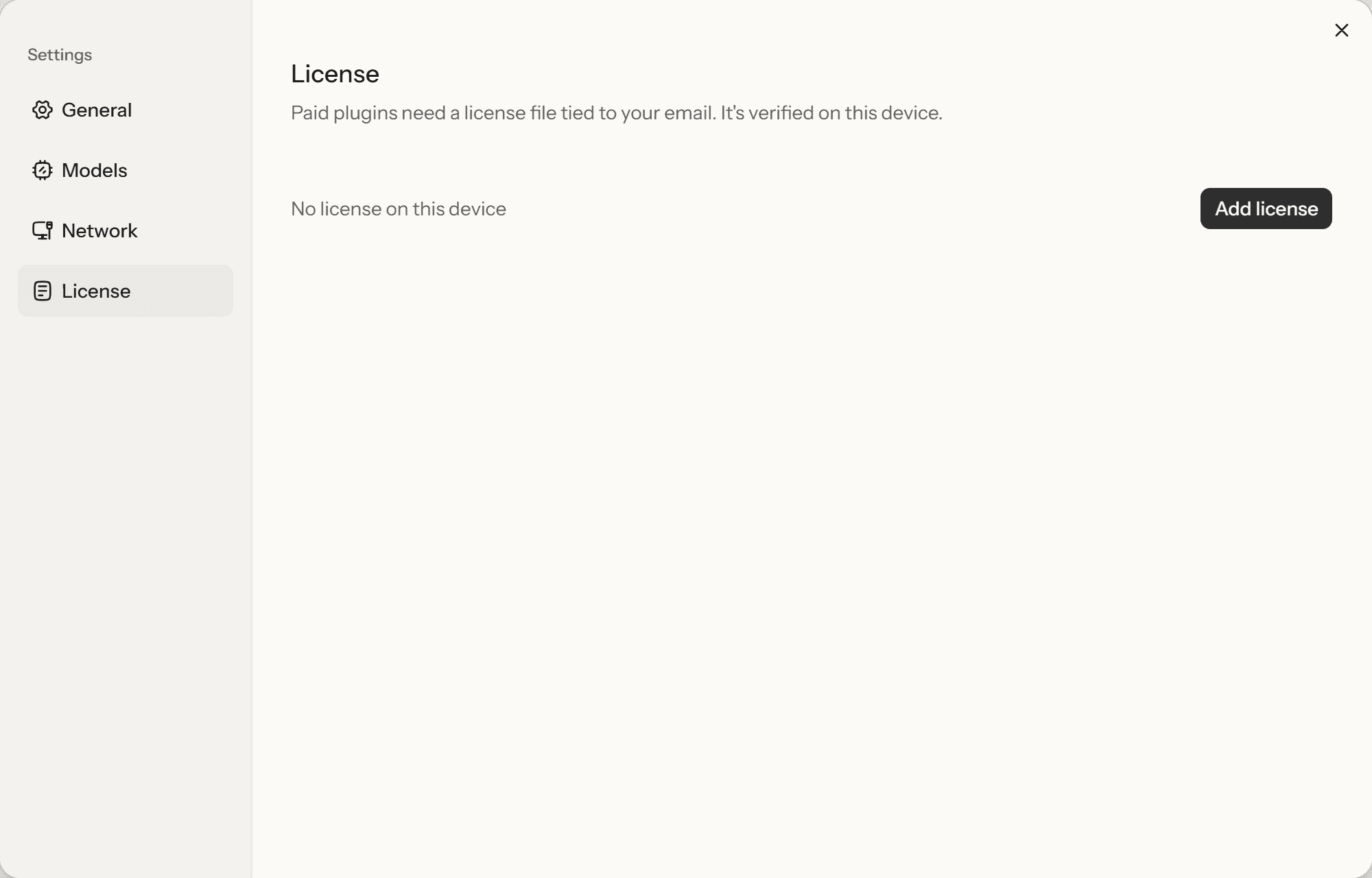
Open Settings, then License
Click the gear at the bottom of the left rail, then choose License in the sidebar.
- 4
Add the file
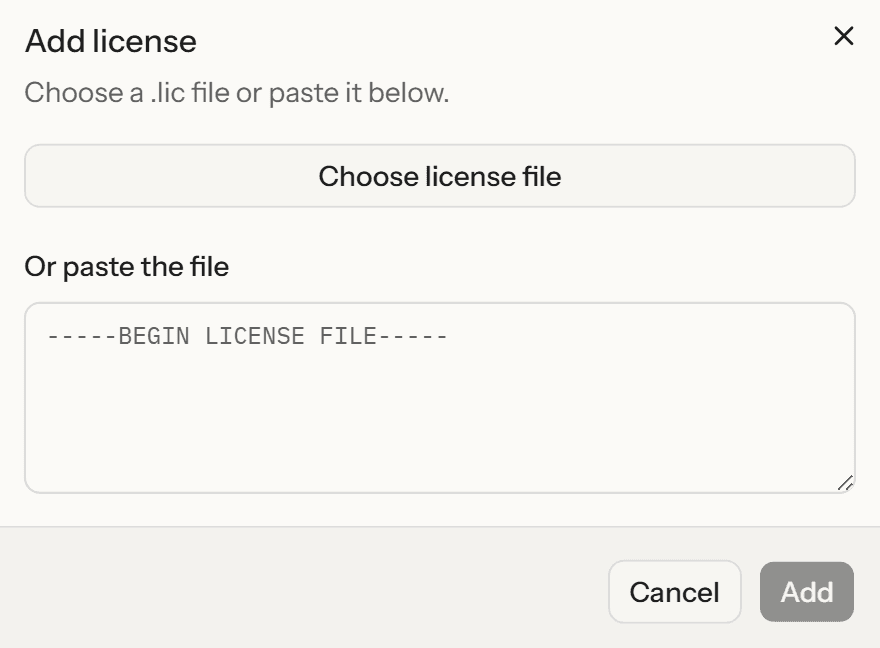
Click "Add license", then either choose the .lic file or paste its contents into the box.
- 5
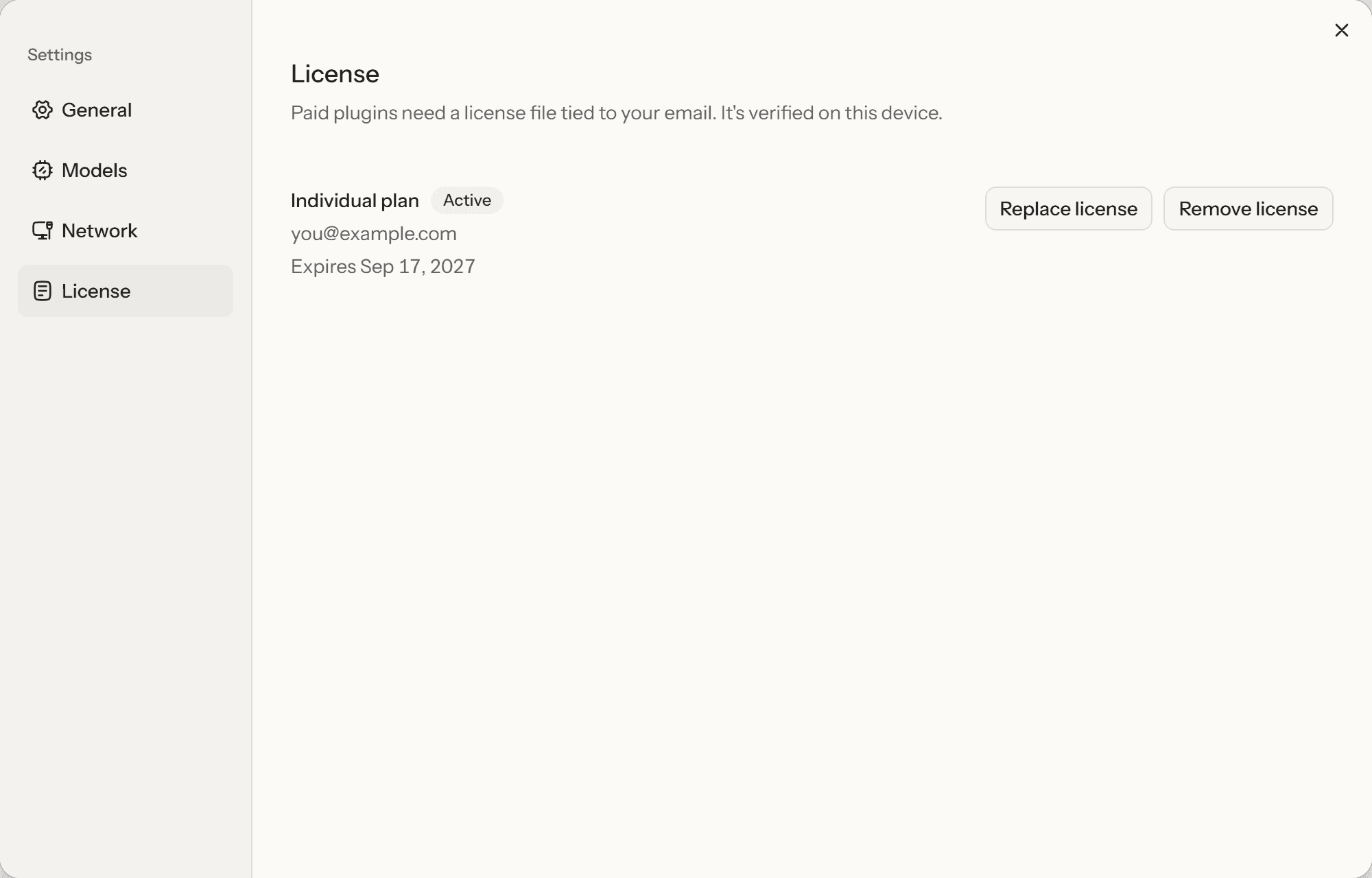
Check that it reads Active
Your plan, the address the license is tied to, and the expiry date appear together with an Active badge. Nothing was sent anywhere to get there.
If something is wrong
Lost the file?
We will email it again to the address it was issued to, at surfsense.com/license. Nothing about your license changes when you ask for another copy.
It says "Clock is off"
SurfSense will not trust a license on a computer whose clock is more than five minutes behind the last time the app ran, or behind the date the license was issued. Put the clock right and it reads Active again.
What happens when it expires?
The app keeps working and your documents stay where they are. Plugins and priority support stop, and every future version of the app is still free.
Bought it for a team?
One file covers everyone on the plan, and it is emailed only to the address that paid, so ask whoever bought it to forward it to you. If that inbox is gone, email rohan@surfsense.com with your payment details.