
Update
SurfSense 2.0: a free desktop app that keeps your documents on your computer
SurfSense is now a free, open-source desktop app for Windows, macOS and Linux. Your index stays on your disk, you choose the model, local or remote, and there is no account. The hosted app is export-only until 18 October 2026.
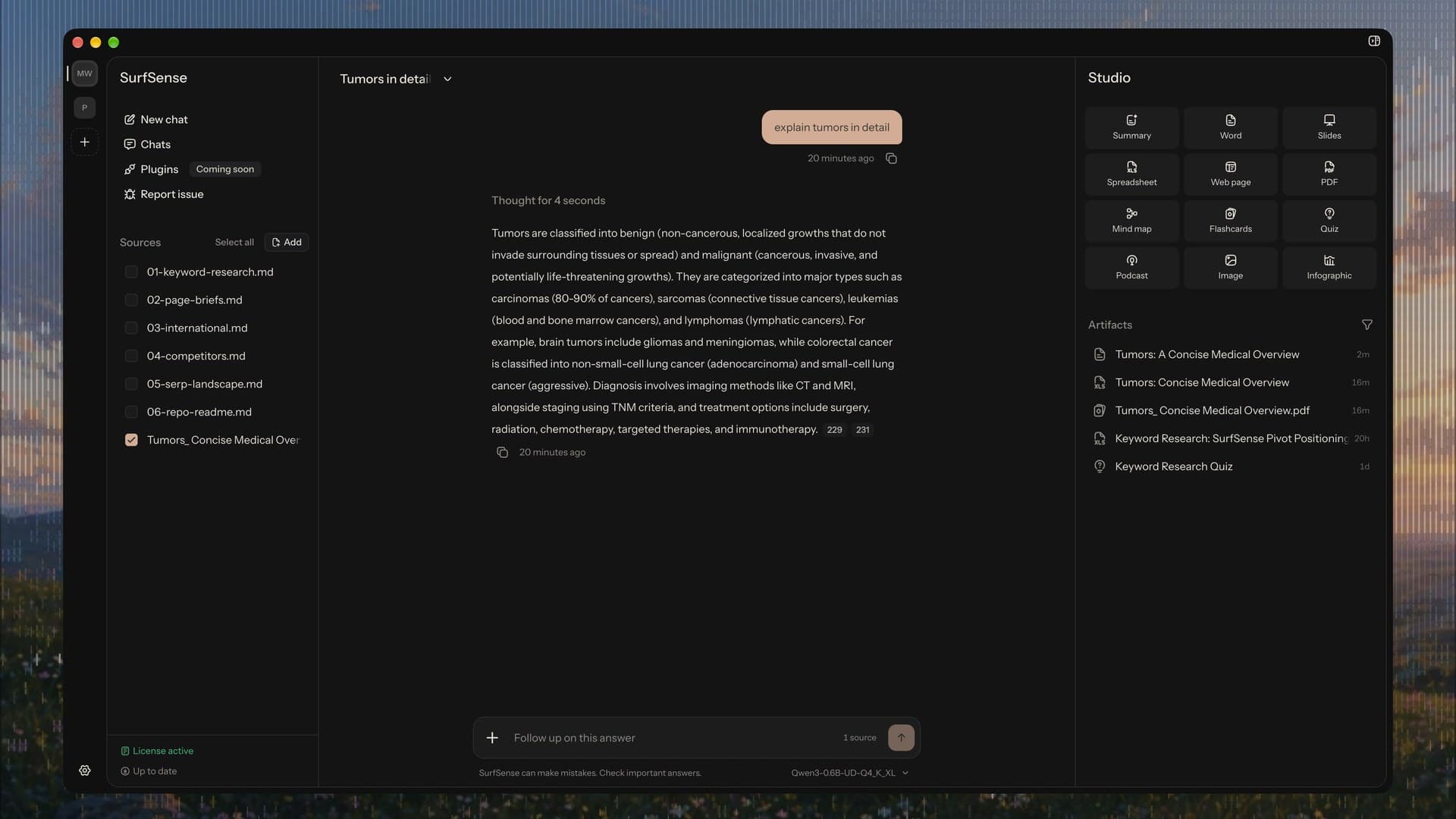
Today we're releasing SurfSense 2.0, which makes SurfSense a free, open-source desktop app for Windows, macOS (Apple Silicon) and Linux, built for the documents you can't or won't upload. You ask questions across your documents and get cited answers, then turn the same documents into decks, reports, study material and podcasts. The index stays on your disk, you choose the model, a local one or any OpenAI-compatible API, and there is no account.
Until now SurfSense was a web app that we hosted or you ran yourself with Docker, and in July we said it would become a hosted platform for AI agents. We have changed course. From 2.0 on we focus on the desktop app, and the hosted app is being retired.
What you get in 2.0
- Cited answers across your documents. Ask questions across everything you add to Sources. It is all indexed on your computer, and each answer cites the documents it came from.
- Twelve formats in Studio. Summary, Word, Slides, Spreadsheet, Web page, PDF, Mind map, Flashcards, Quiz, Podcast, Image and Infographic. Word, Slides and Spreadsheet come out as editable
.docx,.pptxand.xlsxfiles. - Models sized to your computer. Use any OpenAI-compatible API, a local server such as LM Studio or Ollama, or let the app download a model for you. Settings › Models offers Qwen3 in six sizes, and Scan hardware lists more that fit your computer. Chat and Studio pick one of three prompt styles to suit the model, so small local models get short, strict instructions.
- Private by default. Model downloads, remote providers and update checks stay off until you say yes, and Settings › Network lists every destination with its own switch. API keys are stored encrypted, with the secret held in your operating system's keychain. There is no telemetry and no crash reporting.
- Works offline. With a local model, SurfSense works with the network off. The bundled Kokoro voice reads podcasts on your computer, and after a one-time download of SD 1.5, SDXL Base or SDXL Turbo, images and infographics are made locally too.
If you used the hosted app
The hosted app is now export-only, and its data is deleted on 18 October 2026. Export before then: the sunset page walks you through it, and the ZIP you save is the only copy you keep.
To bring it into the desktop app, open Settings › General, find Import from SurfSense cloud, click Upload and pick the ZIP. Your workspaces, folders and chats come across, and documents arrive as text that the app indexes on your computer. Original files and generated artifacts are not imported.
Versions 0.0.x of the old desktop app don't update to 2.0 on their own, so install the new app from the downloads page. If you self-host, the Docker stack stays open source and is now community-supported.
Pricing
The app and its updates are free. A license adds paid plugins and priority support, and when it expires the app keeps working. No plugins ship in 2.0; the first one we plan is a web data API.
For a free 30-day license, enter your email on the downloads page; the file arrives by email, no card needed. Add it in Settings › License, which checks it offline. The license page resends a lost file, and the plans are on the pricing page.
Getting started
Download the installer for your system from the downloads page, then:
- Choose your AI model. The first time SurfSense opens, it asks you to pick one: a local model it downloads for you, or an OpenAI-compatible endpoint.
- Add your documents. Click Add in Sources and pick your files.
- Ask, then make something. Ask a question in the chat, then pick a format in Studio.
Since launch
Version 2.2.0 added the agent. Each new chat runs in Basic (Q&A), which answers from your sources, or Agentic, which works on your files: it makes Word, PDF, PowerPoint and Excel files, and edits copies of your Office files, never the originals. Then 2.2.1 brought plugins, MCP servers whose tools the agent can use in an Agentic chat, such as Google Search and Web Crawl. See the changelog and the plugins page.