 SurfSense Docs
Add files and folders
Upload documents to a workspace and watch SurfSense read them on your computer
Sources are what SurfSense answers from. It copies what you add into its data folder and reads it on your computer, with no network. Sources lists the file types it reads and what it skips.
Open the add menu
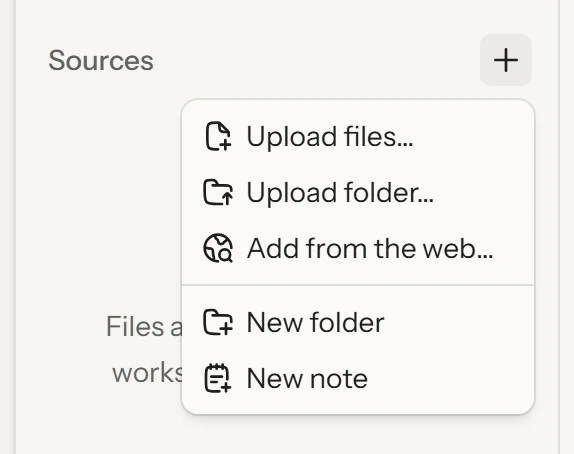
Click + at the top of the Sources panel. Choose Upload files… for one or more files, or Upload folder… for a whole folder, subfolders and all.
You can also drag files or folders from your file manager onto the panel.
Pick the folder
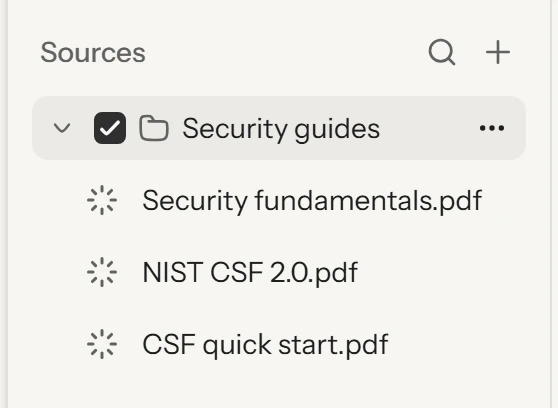
Pick the folder in the window that opens. It appears in Sources straight away, and each file shows a spinner while SurfSense reads it. Text PDFs are quick; scans and photos take longer, since SurfSense reads them with text recognition.
Wait until they're ready
A source is ready once it's searchable: its spinner turns into a tick box. New sources start ticked, so chat and Studio use them. The chat box shows how many are ticked, such as 3 sources.
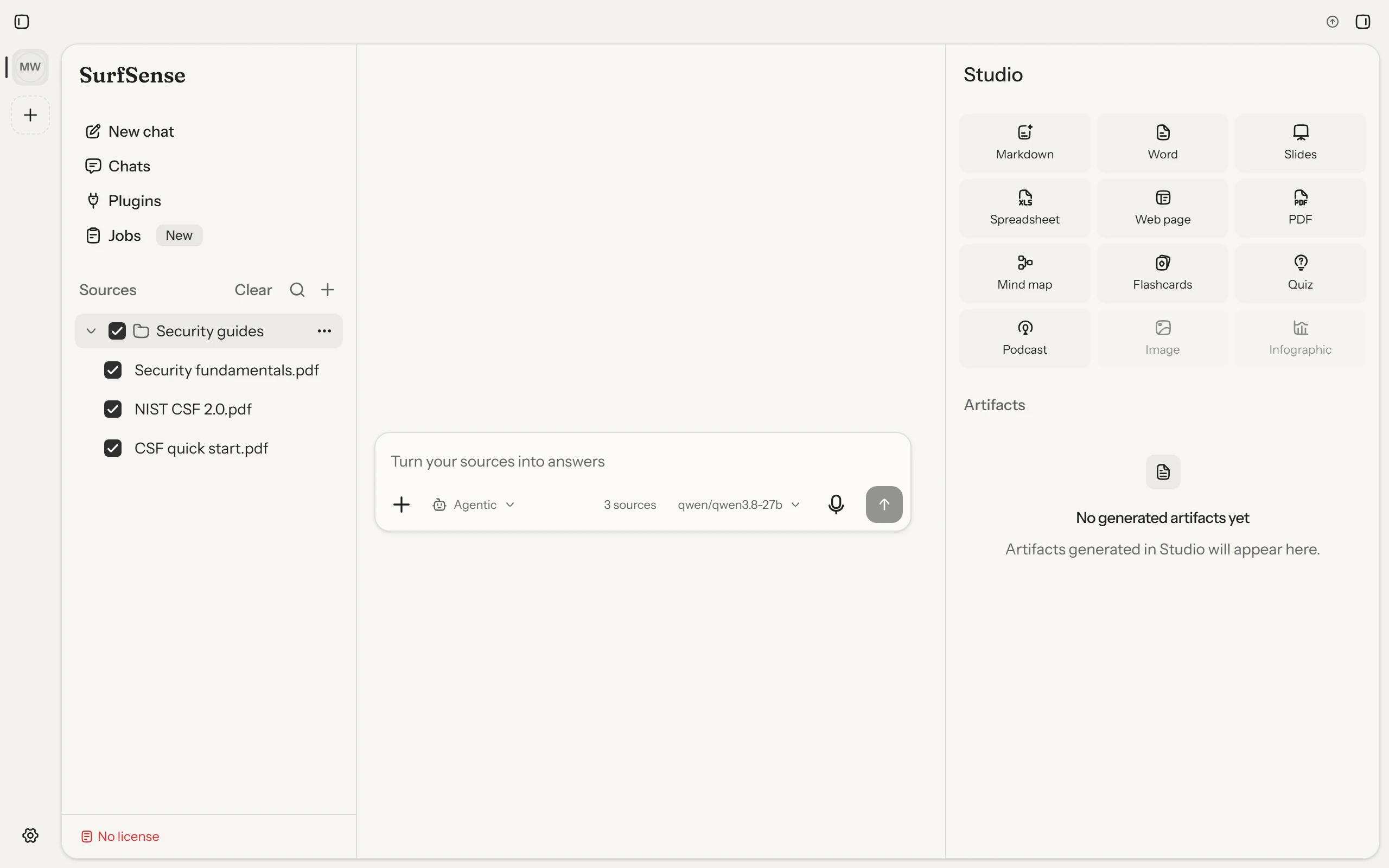
To stop a source that's being read, open its ⋯ menu and choose Cancel. A source that failed shows why, with Retry in the same menu.
Next
Last updated on November 23, 2026