 SurfSense Docs
Organise sources: notes, folders and previews
Write a note, make a folder, move a source into it, and preview a PDF without leaving SurfSense
The Sources panel holds folders first, then sources, newest first. A note you write is a source like any file: searched, cited and ticked. See Organize sources.
Write a note
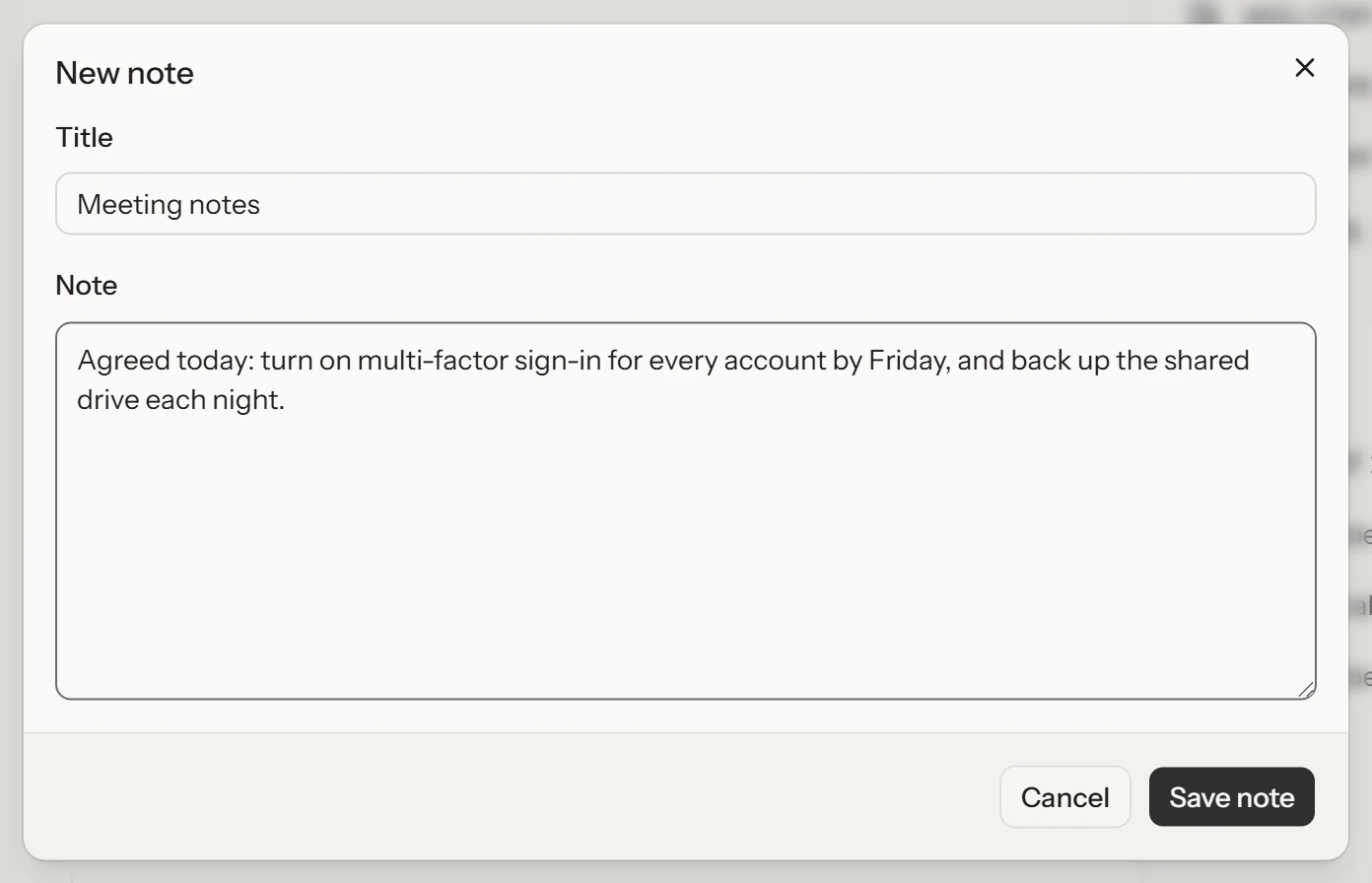
Click + at the top of Sources and choose New note. Give it a title, write it, and click Save note. Edit note, in its ⋯ menu, reopens it later.
Make a folder
Choose + › New folder, name it and click Create. A folder's own ⋯ menu makes folders inside it.
Move, rename or delete
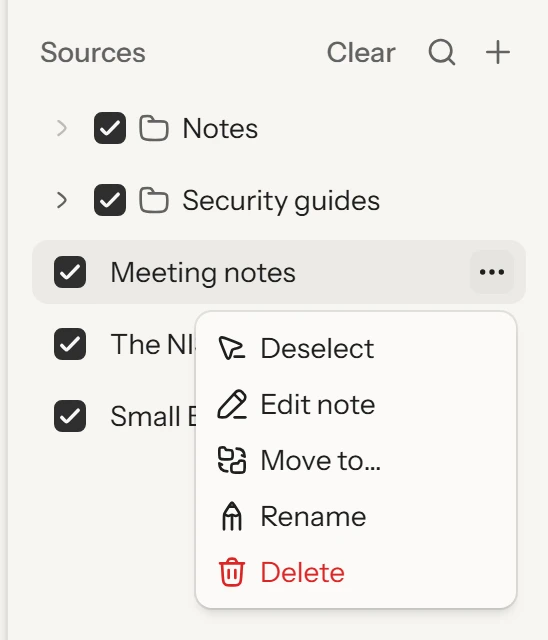
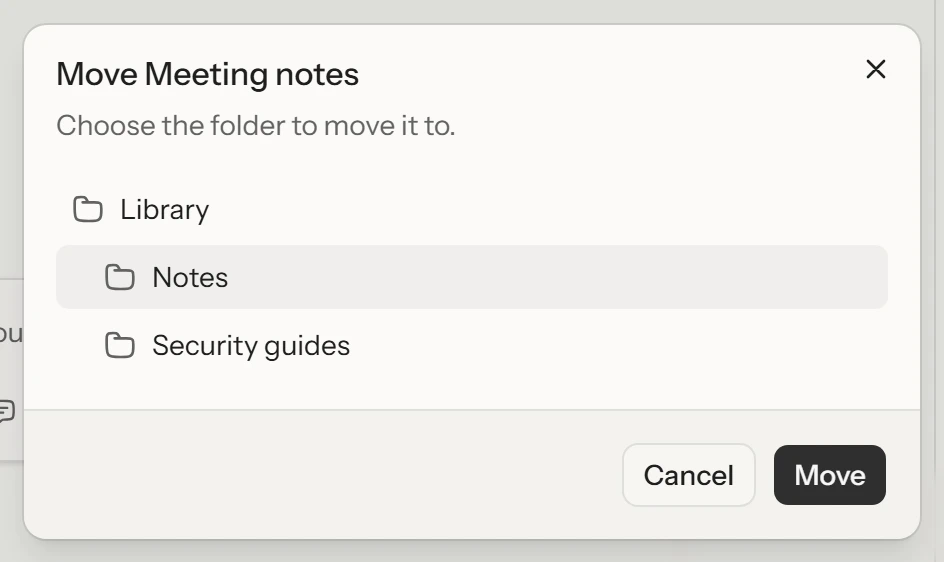
Each source's ⋯ menu has Move to…, Rename and Delete, with Preview, Open and Show in folder for files. You can also drag a source onto a folder.
Preview a PDF
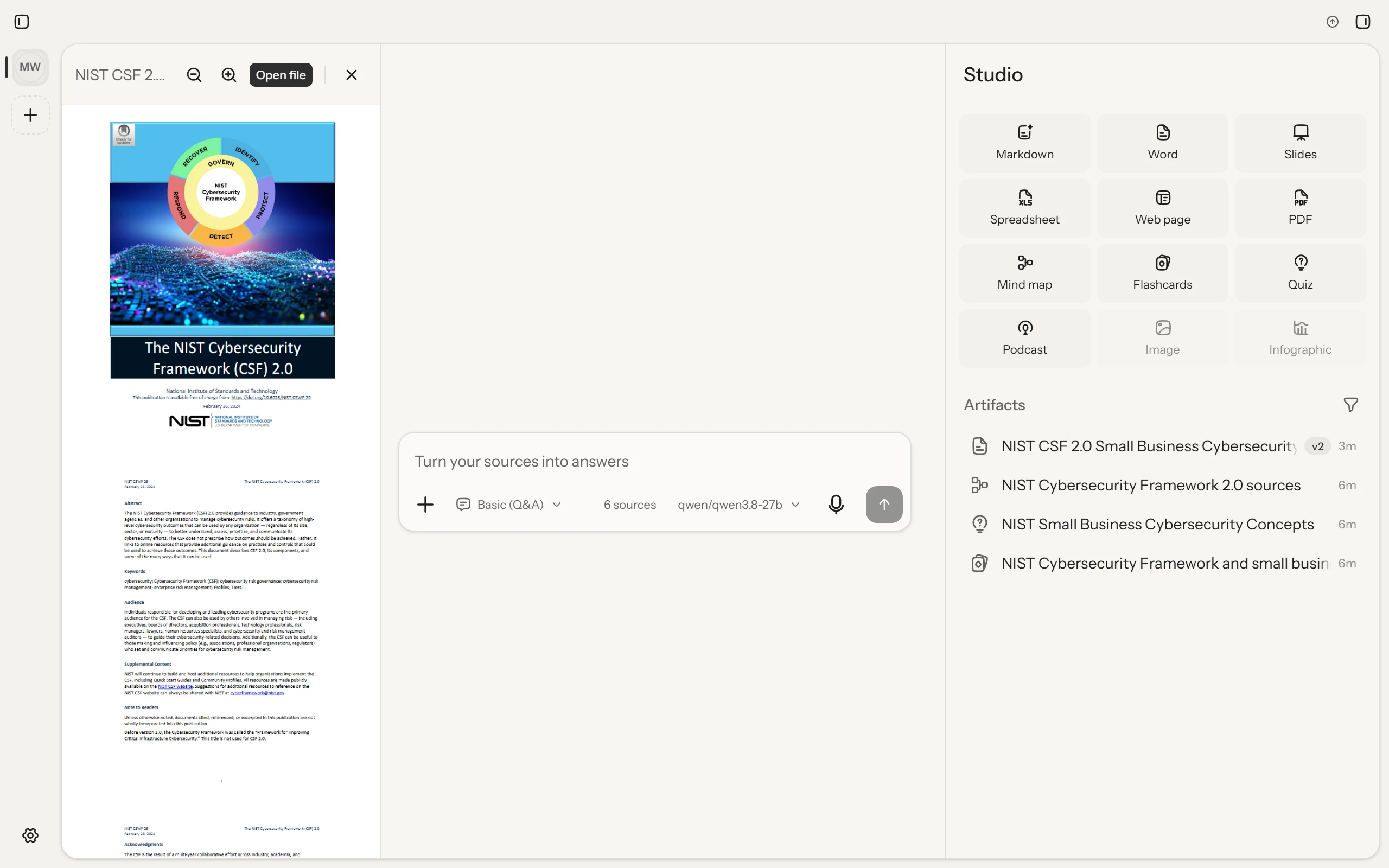
Preview in a PDF's menu shows it inside SurfSense, in place of the left sidebar. Open opens SurfSense's copy in its own app instead.
Deleting a folder deletes everything in it, for good. The box says how many sources go with it.
Next
Last updated on November 23, 2026