 SurfSense Docs
Make a Word document, deck or PDF in Studio
Turn your sources into a document you can download and edit, with a prompt to steer it
Studio turns the sources you pick into something you keep: a Word document, a deck, a spreadsheet, a PDF, a web page and more. It sits in the right panel; if the panel is hidden, click Show right panel in the title bar. Studio lists every format.
Pick a format
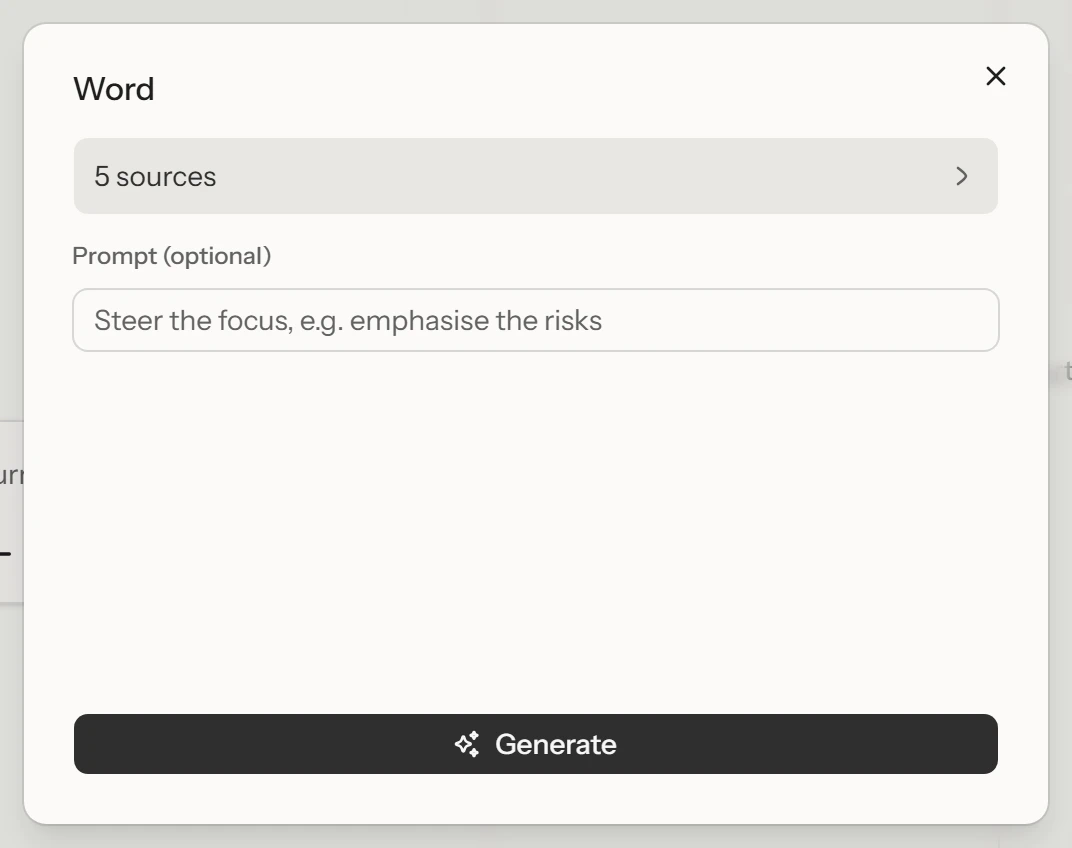
Click the format you want, such as Word, Slides, Spreadsheet or PDF. A box opens with the sources it will use and a prompt.
Choose the sources
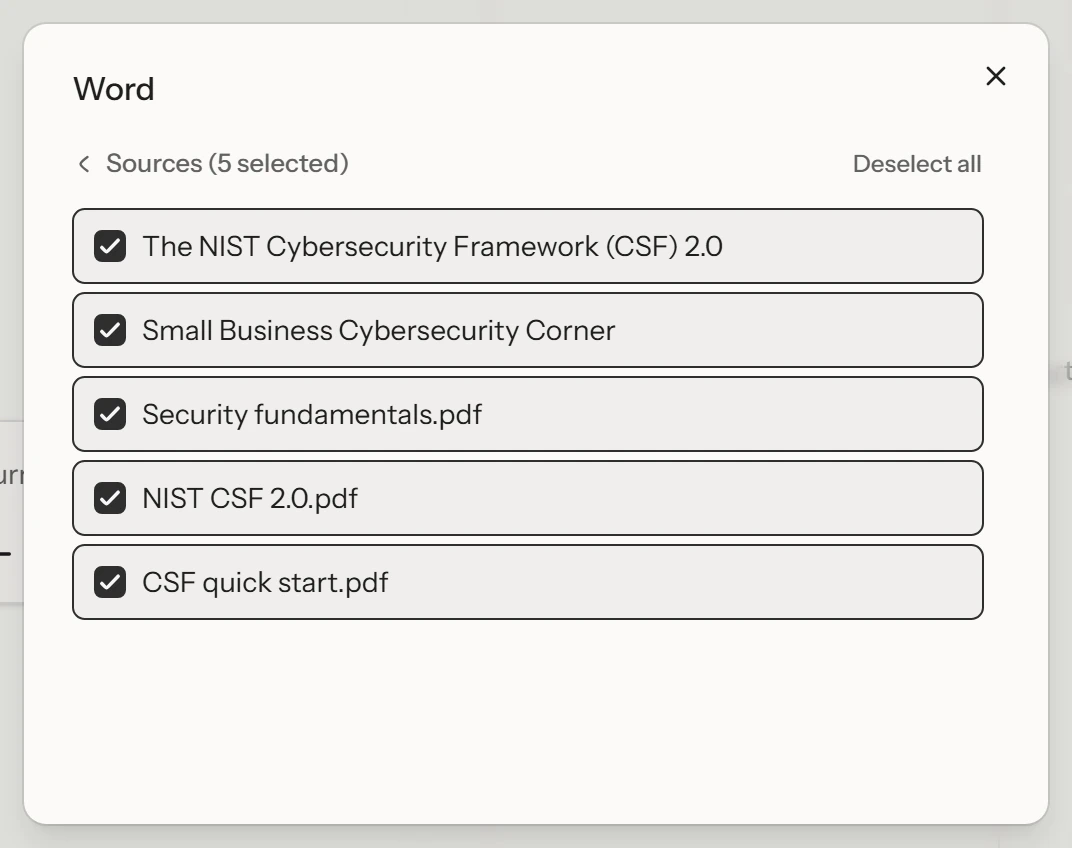
Click the sources button to see which sources it will use. They're the ones ticked in Sources, and the ticks here are the same ticks. Only sources that are ready can be used.
Steer it and generate
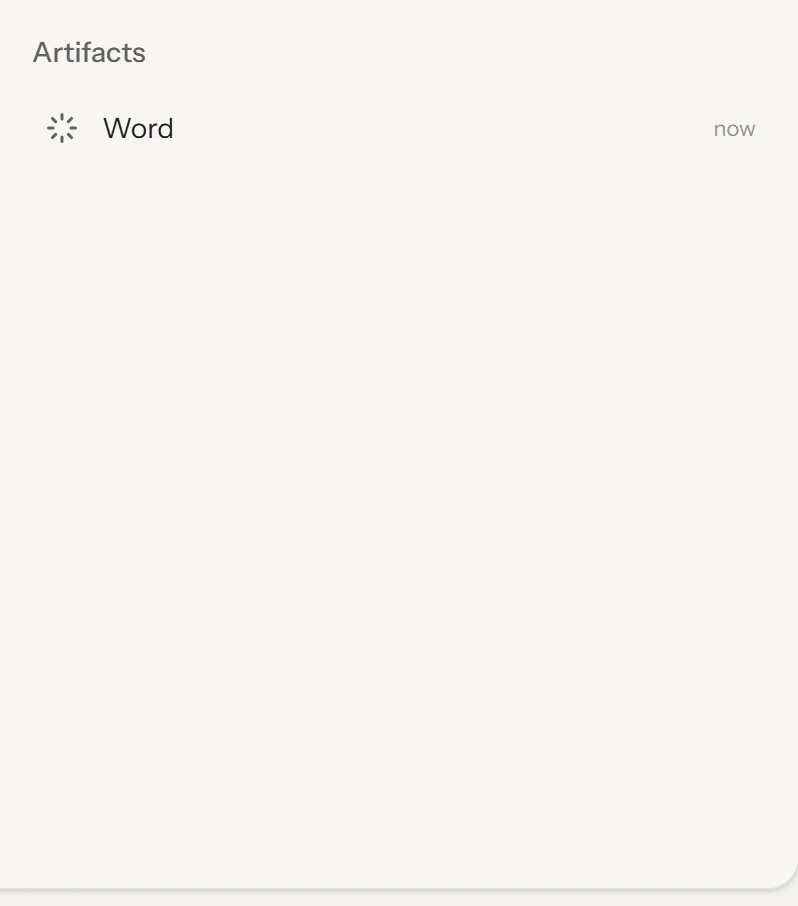
Under Prompt (optional), say what you want, such as "a one-page checklist", then click Generate. The new document appears under Artifacts while it's made, and you can keep working or start another.
Open and download it
When it's ready, click it to open it in the right panel. Download saves the file: a real .docx, .pptx, .xlsx or .pdf you can open and edit in Word, PowerPoint, Excel or LibreOffice.
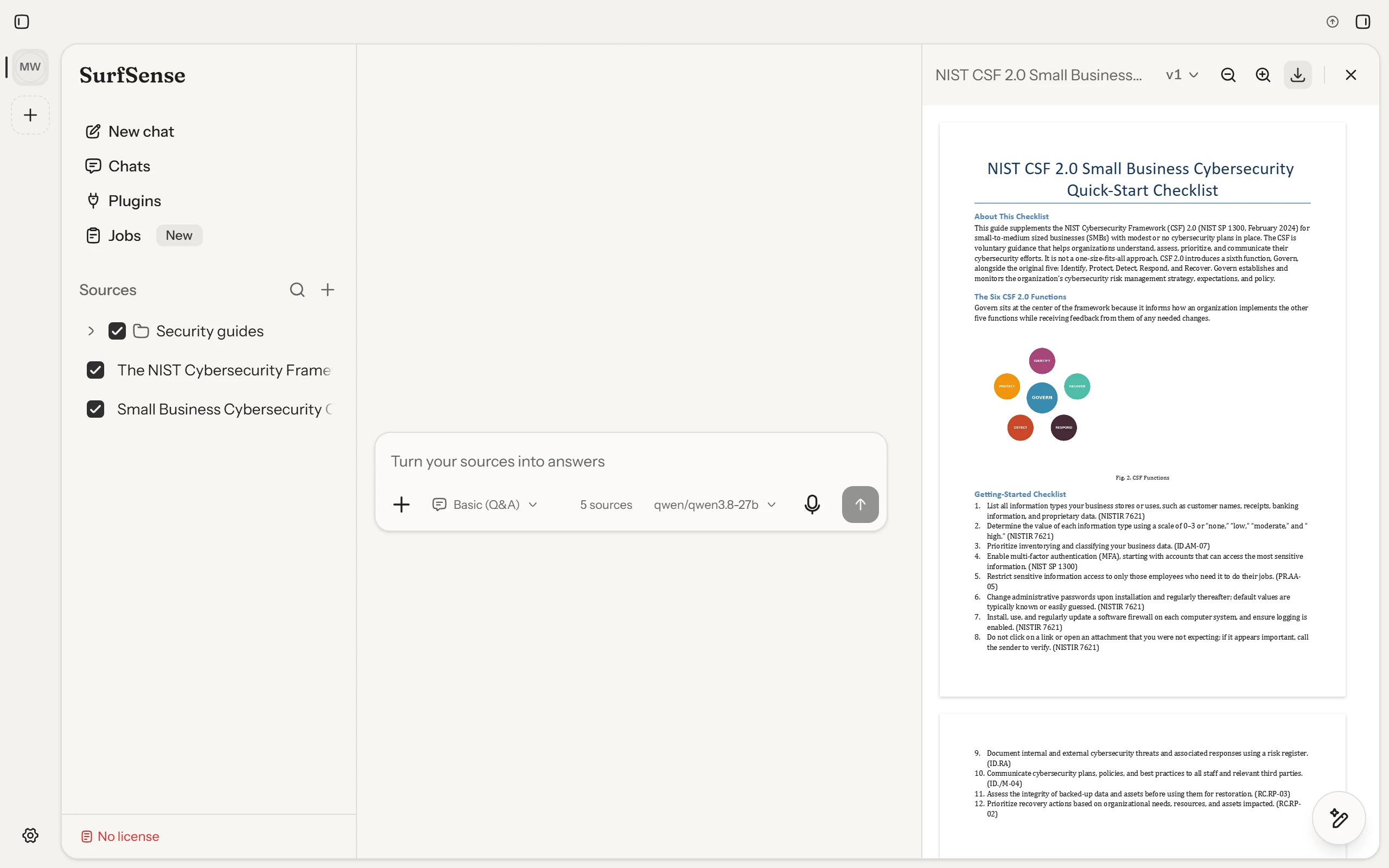
Studio uses the chat model in Settings at the moment you click Generate. A strong model lays out Word documents and PDFs more richly; a small local one makes simpler ones.
Next
- Refine a document and open an earlier version.
- Make flashcards, a quiz and a mind map from the same sources.
Last updated on November 23, 2026