 SurfSense Docs
Redline a contract against your playbook
Run the contract redline job on a Word contract you received, then check its tracked changes and comments in Studio
The Contract redline job reviews a contract you received, as a Word file, against your firm's playbook, one review point at a time, and marks up a copy with tracked changes and comments. Where your playbook says nothing on a point, the contract is left as it is there. It is part of the free app from SurfSense 2.4.0, with no license. See Review a contract for everything it does.
Add the contract and your playbook
Add the contract, as a .docx file, and your playbook to Sources, and wait until they're ready. Your playbook is your firm's written positions, its own standard agreement, or both. Here the contract is a real non-disclosure agreement from an SEC filing, and the playbook is the Bonterms Mutual NDA, a published standard agreement standing in for a firm's own.
Choose the contract and the playbook
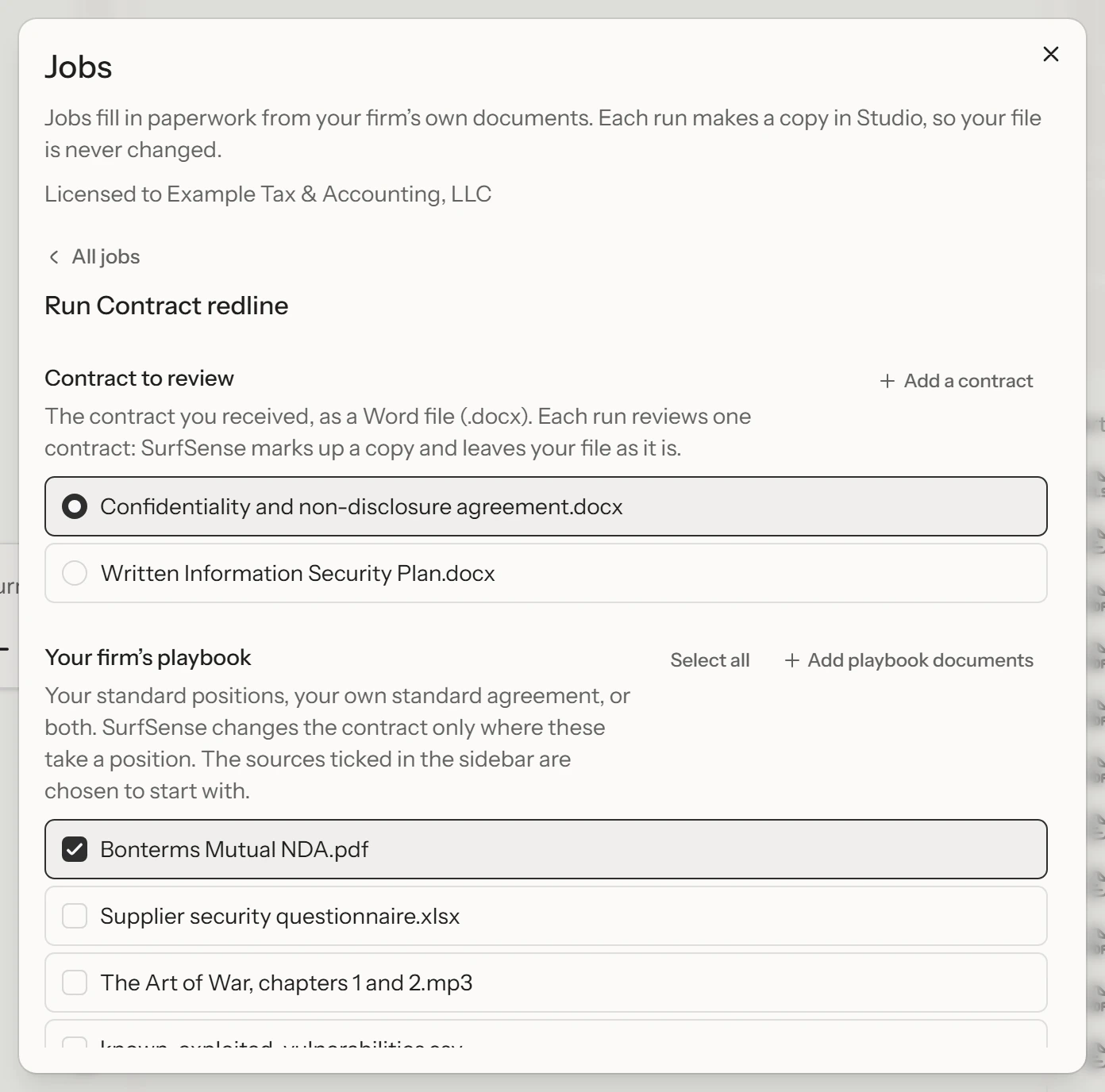
In Jobs, click Run beside Contract redline. Under Contract to review, pick the contract: SurfSense marks up a copy and leaves your file as it is. Under Your firm’s playbook, tick your playbook's documents. Here that's Deselect all, then the Bonterms agreement.
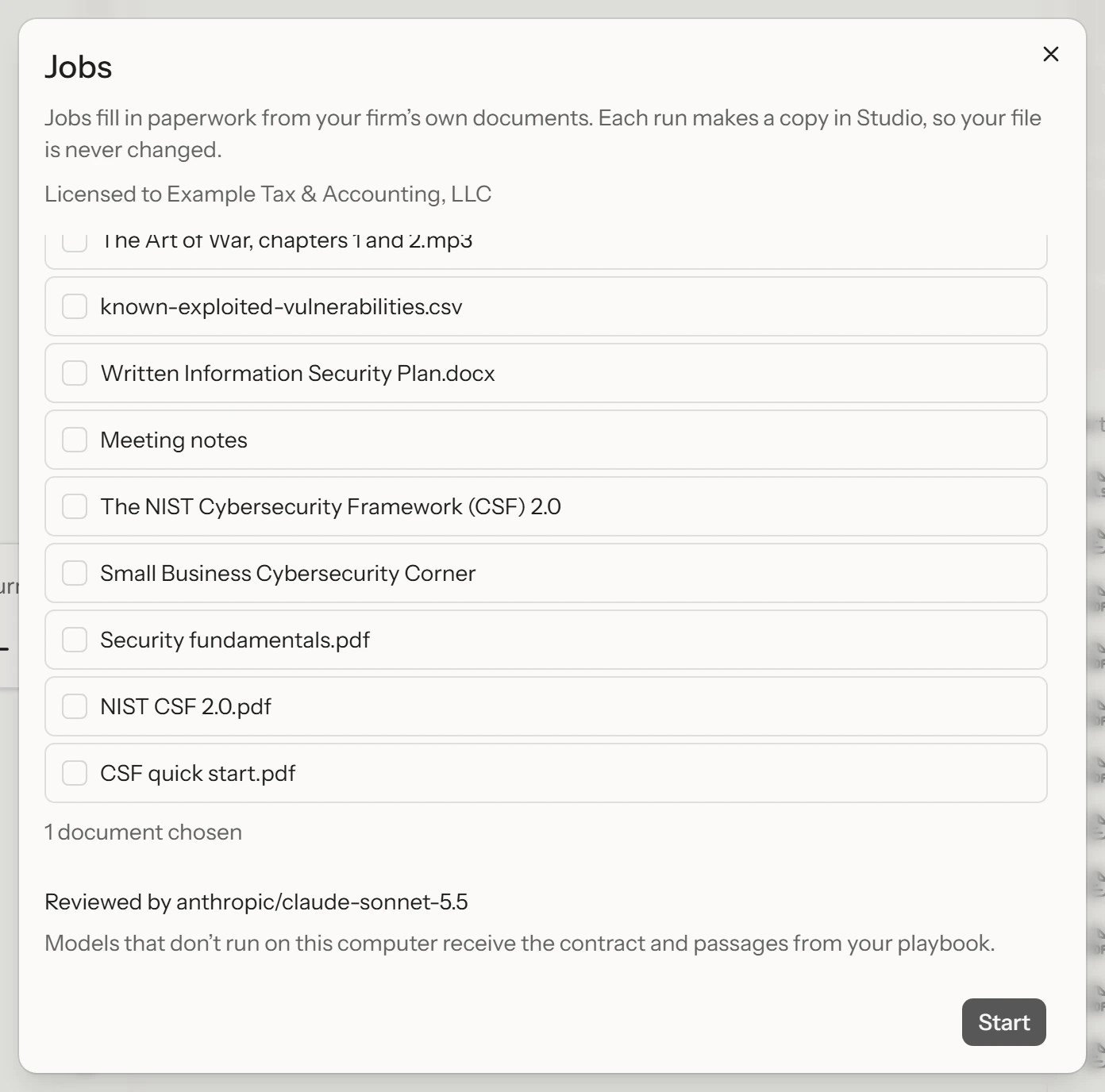
Start
At the foot of the form, check the model that reviews: a model that doesn't run on your computer receives the contract and passages from your playbook. Then click Start.
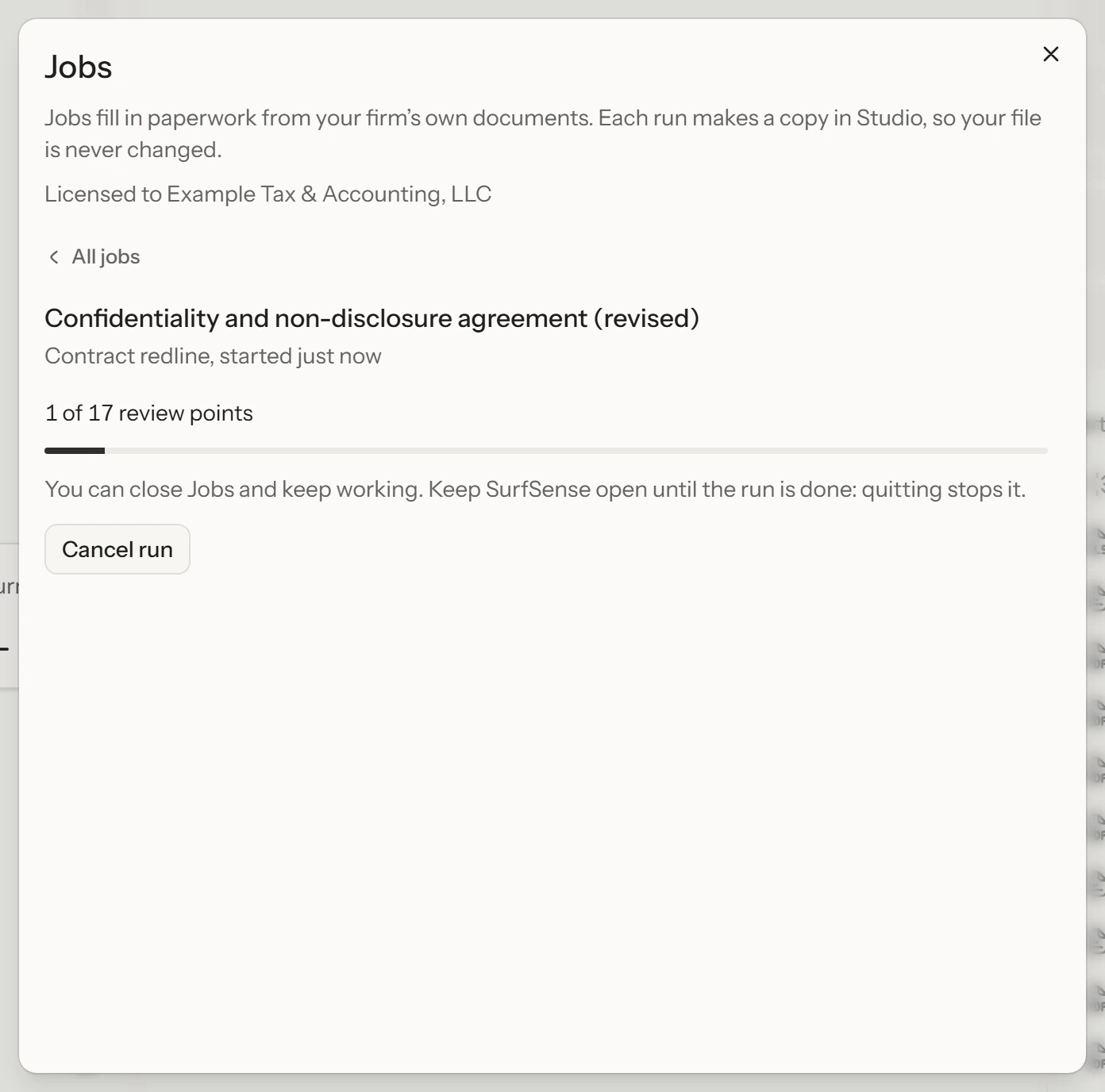
Jobs counts the review points as it checks them. You can close Jobs and keep working, but keep SurfSense open until the run is done.
Read what it did
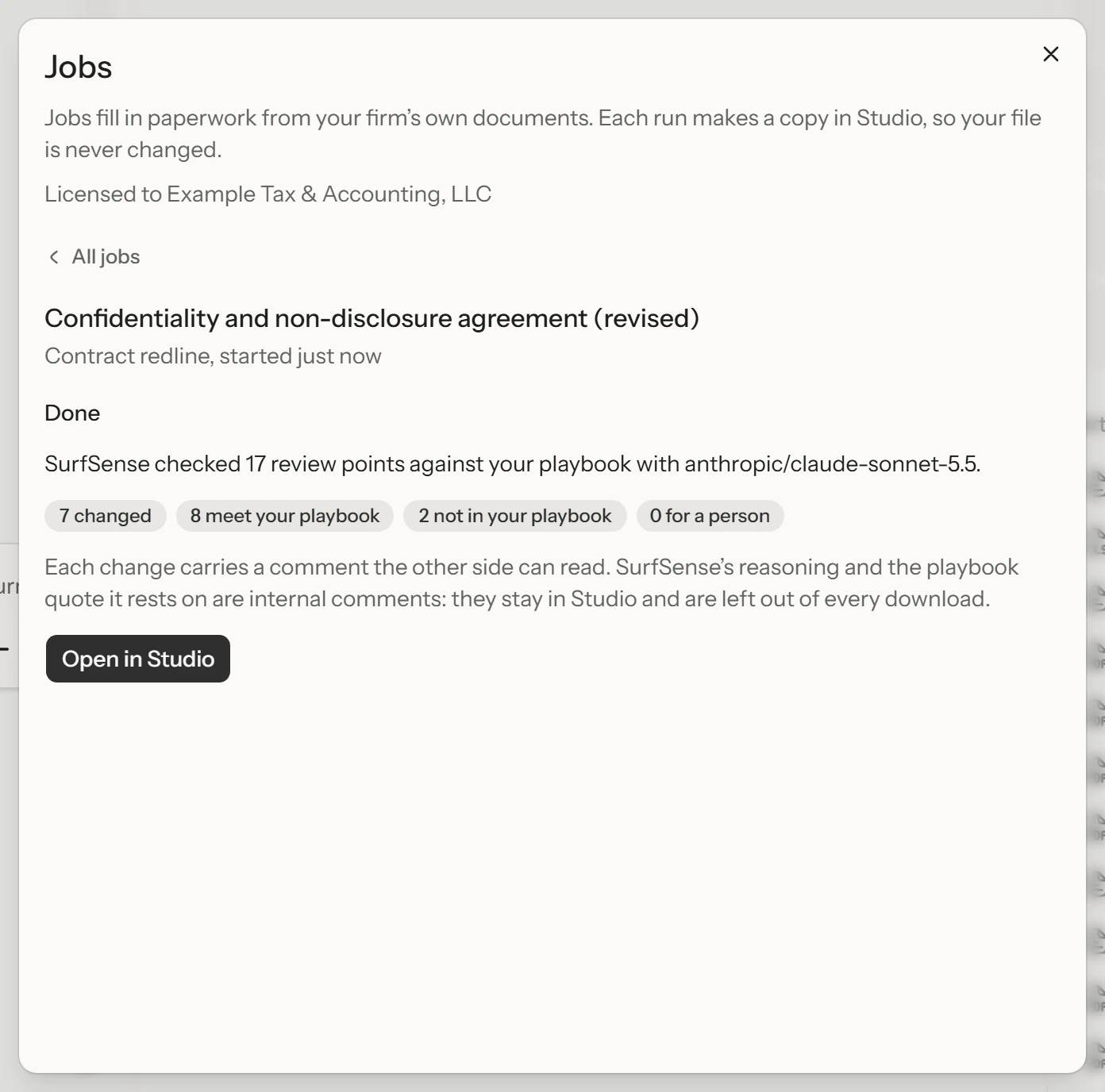
When the run is done, Jobs says how many points it changed, how many already meet your playbook, how many your playbook doesn't cover, and how many it left for a person.
Check the copy in Studio
Click Open in Studio. Each change is a tracked change with a comment the other side can read. SurfSense's reasoning, with the words of your playbook it rests on, is an internal comment: it stays in Studio, and every download leaves it out. To read the comments beside the page, hide the sidebar, widen Studio, and scroll across.
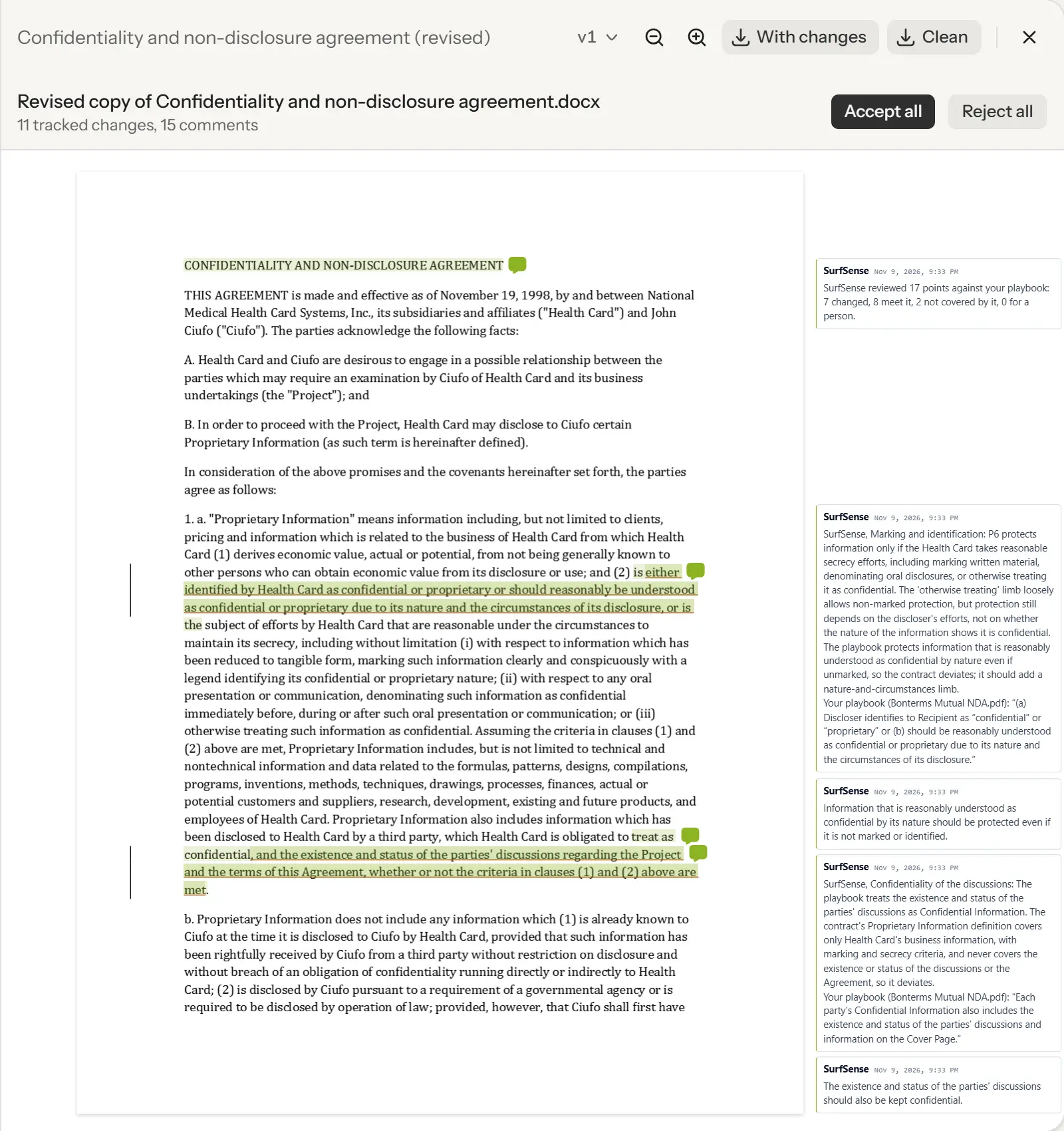
Accept or reject the changes in Studio, with Accept all and Reject all, or in Word. Download the copy with With changes. Read every change before you send it: SurfSense changes only what your playbook takes a position on, so a playbook that says more catches more.
Here the job reviews with Claude Sonnet 5.5 through OpenRouter. A model that runs on your computer keeps the contract on it.
Next
- Fill in a security questionnaire from your policies, the other job.
- Edit your own Word file with tracked changes, when the change is yours to ask for.
Last updated on November 23, 2026